

- Get detailed metrics on API usage, errors, and performance
- Track API adoption and usage by individual consumers
- Log individual API requests, responses, and correlated application logs
- See what’s causing slow API requests with traces
- Monitor uptime and set up custom alerts
Create app
To get started, create a new app in the Apitally dashboard and select Hono (Cloudflare Workers) as your framework.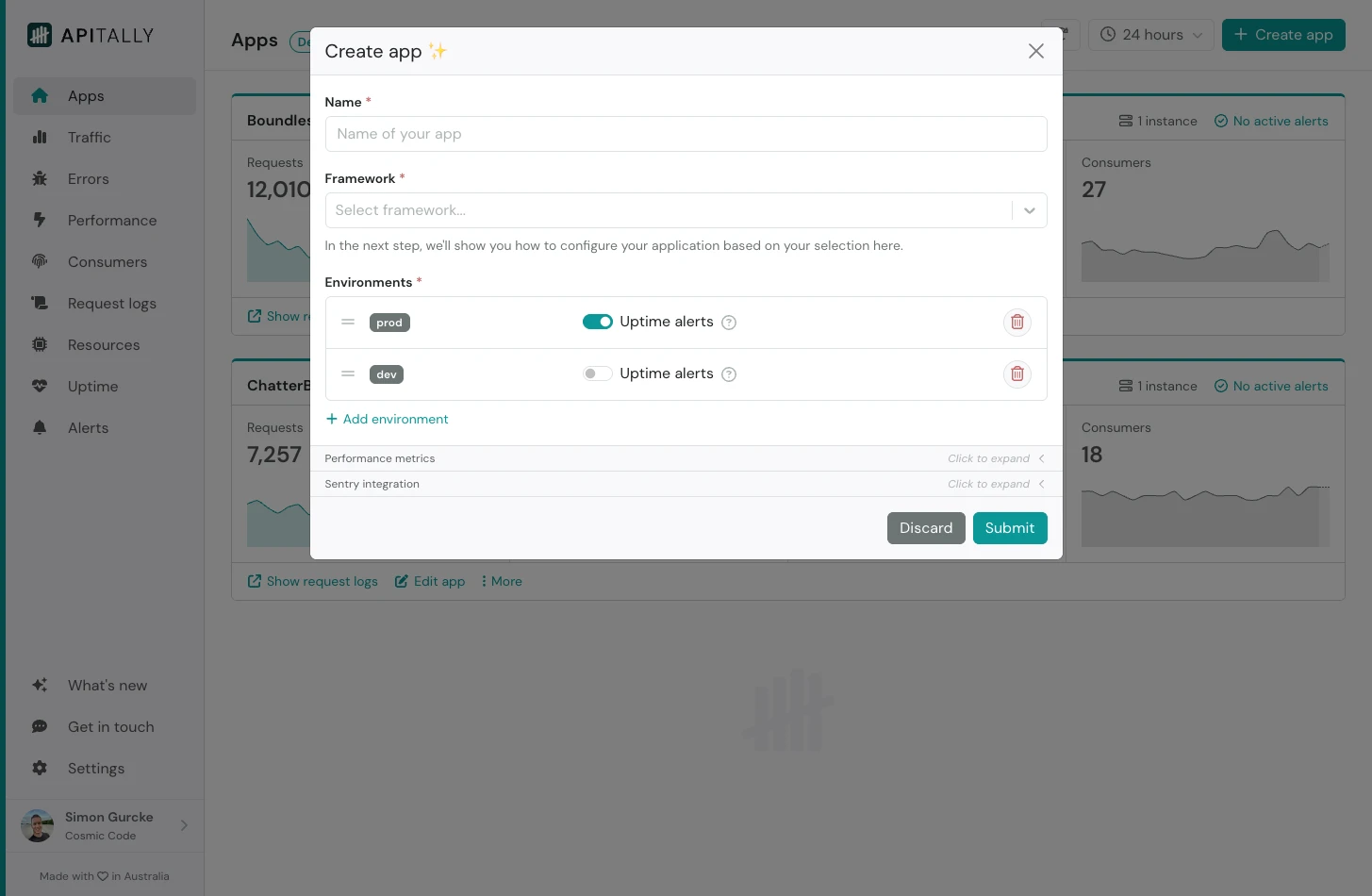 You can also configure the environments (e.g.
 prod and dev) for your app, or simply accept the defaults.
After submitting, you will see tailored setup instructions for your app. These include code snippets you can copy and paste into your project.
The client ID provided in the setup instructions uniquely identifies your app for the purpose of data ingestion only. It does not grant any kind of read access to your data.
Create Logpush job
Log in to the Cloudflare dashboard and navigate to Analytics & Logs > Logpush. Create a Logpush job with the following settings:
In the HTTP endpoint, replace
{client-id} with your app’s client ID and {env} with the environment (e.g. prod or dev). In the filter criteria, replace {your-worker-name} with the name of your Worker, as specified in your Wrangler config.
Add middleware
Next, install the Apitally Serverless SDK in your project.useApitally function.
Add the Apitally middleware before any other middleware to ensure it wraps the entire stack.
Configure Worker
Enable Workers Logs and Logpush in your Wrangler configuration file.At this point the basic setup for your application is complete and you will start seeing data in the Apitally dashboard after the first request is handled.
It can take 2-3 minutes for requests to show up in Apitally due to how Cloudflare Logpush batches log data before sending it.Also note that Cloudflare Logpush doesn’t include requests from local development environments, so you won’t see them in the Apitally dashboard.
Identify consumers
To analyze and filter API traffic by consumers, you can associate requests with consumer identifiers in your application. In most cases, use the authenticated identity to identify the consumer. The identifier should be a string, such as a username, email address, or any other unique identifier. Optionally, you can also provide a display name and group for each consumer. Use thesetConsumer function to associate requests with consumers, for example in a middleware.
The Consumers dashboard now shows all consumers that have made requests to your application. You can also filter other dashboards by consumer.
Configure request logging
With the serverless SDK, request logging is enabled by default, however request headers and request/response bodies are not included unless explicitly enabled. The SDK automatically applies default masking rules for common sensitive headers and request/response body fields. You can configure additional masking rules and exclude certain requests from logging.The Request logs dashboard now shows individual requests handled by your application, including headers and payloads, if enabled. You can filter, search, and inspect them in detail.